DeckyHub guide
Every screen and setting, step by step. Short answers to common questions are on the Help page; installing is on the home page.
Controller buttons
DeckyHub uses Steam's standard controller controls, plus extra shortcuts on every Install / Update button (on Discover and Updates cards, on Search results, in the Manage window, and for DeckyHub's own update):
| Button | What it does |
|---|---|
| X | Download that release's ZIP to ~/Downloads/deckyhub instead of installing it. Not shown when Download ZIP is hidden in Settings. |
| Y | Show the release notes (what that release changes) without installing anything. |
| Menu (☰) | Open the plugin's GitHub page. Not on DeckyHub's own update. |
Steam's footer shows these actions for whichever button is focused.
Discover
Discover opens on three shelves, Most popular, Recently updated and New in DeckyHub, under a row of category chips with how many plugins each holds. Tap a chip, or See all on a shelf, to browse the whole list: as a compact list of every plugin (the default), or as a Grid of cards a page at a time (L1 / R1 turn the page). Updates and Search have the same Grid / List switch, and DeckyHub remembers your choice. The first time, a short welcome above the shelves says what DeckyHub does and how to stay safe.
Each card is color-coded (green once it's up to date, yellow when an update is available, red on an error) so you can spot what needs attention at a glance, and says Checking… while its latest release is still being looked up. Listed plugins also show their all-time downloads, GitHub stars and when they were last updated; the page header shows the total downloads. A card set to the pre-release Channel says so; stable is the default and isn't labelled. Tap Manage on any card to pick a channel and version, then download the release asset you want.
Search, filters and sorting
Search the list by name, repository, category or description, and open Filters to narrow it:
- Status: All, Installed, or Not Installed.
- Category: any of the list's categories.
- Sort: A to Z, Z to A, Most downloaded, Most stars, Recently updated, or Recently added (newest additions to the list first). Plugins with an update always come first, and Then by orders plugins the first sort leaves tied.
Every Status and Category option shows how many plugins it would list.
Badges
Cards can carry these badges. More on the "What the badges on plugins mean" notice at the top of Discover explains them in the app too.
| Badge | What it means |
|---|---|
| Runs as root | Its backend runs as root, with full access to the system. Install only if you trust the author. |
| No release in a year | No new release for over a year, so it may be abandoned. |
| Fork | A fork that carries a plugin on after its original stopped. DeckyHub lists it only while it's the active one. |
| AI | Its repository has instructions for AI coding assistants (CLAUDE.md, AGENTS.md, .cursorrules, .github/copilot-instructions.md and similar), or its README says it's made with AI ("vibe-coded", "100% AI", "built with Claude Code" and similar), so it's likely developed with AI help. It says nothing about quality or safety, and no badge doesn't mean no AI was used. |
| Rust | Its repository has Rust code (a Cargo.toml or rust-toolchain file), so part of the plugin is written in Rust. It says nothing about quality or safety. |
| In Decky store | The Decky store lists a plugin with this name. The store names no repository, so the match is by name: check that it is the same project. Hover the badge for the store's download count, a different number from the GitHub downloads shown on the card. The count comes from the Decky plugin store. A plugin whose author asked to be distributed only through the store is still listed, but DeckyHub offers no GitHub download for it. |
| Pre-release only | It has no stable release, so DeckyHub offers its pre-releases, which may be unfinished, and its Manage window hides the Stable channel. |
| No description | Its author hasn't said what it does. Check its repository before installing. |
| Nothing flagged / Threat found / Not fully scanned | The virus scans of the release you'd install: ClamAV, YARA, VirusTotal and MetaDefender. Nothing flagged only once all four have reported and none flagged it; any engine flagging it is Threat found (it may be a false positive; open Manage for the report and decide); anything else is Not fully scanned (Manage says which scanner hasn't reported). The number beside the badge is how many of the four found nothing. No badge until it's been scanned. New, pending, failed, or unsupported scans may not have a result yet. The scans only catch known malware and can be evaded, so a clean scan isn't proof of safety. |
DeckyHub is not the Decky store, and nobody reviews these plugins. A clean scan only means no known malware was found.
The selected ZIP's scan report also includes DeckyHub's independent automated audit, separate from ClamAV, YARA and the community audit below. It checks selected code patterns and whether the manifest requests root, compares eligible files with the repository's current release-tag source, and inventories identifiable packages and binaries. Known vulnerabilities in identified package versions are checked using OSV; package names and versions are sent to that service. Generated files, bundled code and binaries may not be comparable or identifiable, and a source match does not prove the ZIP was built from it. Findings need review and may not indicate harm; no root request does not rule out privileged behavior. Incomplete, failed, missing or unmatched reports cannot establish what was checked, and even completed checks cannot prove a plugin is safe.
These warnings come from Decky Extended Plugins' automated security audit of the release you'd install. Routine findings like sudo, mount or systemctl aren't shown. A warning isn't proof of harm, and no warning isn't proof of safety.
| Warning | What the audit found |
|---|---|
| Blocked by audit | Malware or a broken archive. Not recommended for installation. |
| Reads private data | It reads Steam login data, SSH keys or secrets from the environment. |
| Changes system startup | It edits shell profiles, preloads libraries, loads kernel modules or adds device rules, which keep working outside Decky. |
| Code not in its repo | The release has scripts or programs that aren't in its GitHub source, so you can't read what they do. |
| Hidden code | It contains encoded or packed code that's hard to read. |
| Skips HTTPS checks | It turns off certificate checks, so what it downloads could be tampered with. |
| Runs downloaded scripts | It downloads a script and runs it straight away. |
| Known vulnerabilities | It bundles libraries with published security flaws. |
A warning about a newer pre-release is labelled Pre-release:. Download counts, stars and warnings come from the registry, refreshed every hour.
Search & Install
Not every Decky plugin is in the Decky store or DeckyHub's list. Open Search from the Quick Access Menu, type what you're after, and DeckyHub looks it up on GitHub, right from Gaming Mode.
- Only Decky plugins — results are limited to repositories that are actually Decky plugins, so awesome-lists, guides and unrelated projects don't get in the way.
- Install — adds the repository to your tracked list and hands its latest release to Decky Loader's own installer, behind the usual confirmation. From then on it shows up in Discover with update checks, like any listed plugin.
- Add (the + beside Install) — only tracks the repository, so you can look at it in Discover and install it later. Results already in DeckyHub say In DeckyHub.
- Y on a result's Install shows that release's notes, and X downloads its ZIP instead.
[!WARNING] Search results come straight from GitHub and nobody has reviewed them: not DeckyHub, not the Decky store. A plugin can do anything on your device, so only install plugins from authors you trust.
Tracked repositories are listed in Settings → Repositories, where you can remove them or export and import the list.
Updates
Shows every tracked tool that's installed and has a newer release available, along with its installed and latest version. Update a plugin from its Manage window, or, when more than one Decky plugin is waiting, tap Update All to hand them all to Decky Loader's installer behind a single confirmation. A few plugins can't be updated in place because of a Decky Loader bug: Update All leaves them out, and their Manage window explains that DeckyHub removes the installed version before Decky installs the new one. The Updates button in the Quick Access Menu shows how many updates are waiting.
Manage
Tap Manage on any card in Discover or Updates to:
- pick the release channel and a specific version. Stable shows only stable releases; Pre-release shows every release, newest first, so a stable release that comes out after the last pre-release is still offered;
- Download ZIP, open the Release Page, or Check for Updates for that app;
- for a Decky plugin, Install (not installed yet) or Update (the selected version is newer than the installed one). DeckyHub downloads the release ZIP (with a progress window, then a spinner until Decky is ready) and hands it to Decky Loader's own installer, the same one the Decky store uses. Decky asks you to confirm and installs it, verifying the SHA-256 checksum GitHub publishes for the ZIP. Older releases (files uploaded before mid-2025) have no checksum and Decky installs them without that check;
- for an installed Decky plugin, Pin at vX: DeckyHub stops offering updates for it (it shows Pinned, and Update All and the update count leave it out) until you press Unpin. Use it for a plugin that a newer release broke. A pin only hides updates: you can still install any version yourself. Skip vX is the lighter option, which hides just one release;
- for an installed Decky plugin, Uninstall, which asks you to confirm and then removes the plugin and its settings through Decky Loader;
- check the Virus scan of the selected version's ZIP: No threats found, Threat found (with what was matched), or Couldn't be scanned (with the reason), or Not scanned yet, and when it was scanned. Each scanner gets its own line: ClamAV and YARA. Scan report shows the full report: the file, its SHA-256, each scanner's version, signatures or rules, and date. VirusTotal opens VirusTotal's page for the ZIP's SHA-256 in Steam's browser; nothing is uploaded from your device. DeckyHub's registry sends VirusTotal the plugin ZIPs it hasn't seen yet, so a new release can take a while to get results. Copy ZIP link puts the ZIP's download link on the clipboard, and Scan link on VirusTotal copies it too and opens VirusTotal's URL scan page to paste it into (VirusTotal mainly rates the link itself, so it may not check what's inside the ZIP). The scan never stops you installing: read the report and decide for yourself. DeckyHub's registry scans every plugin ZIP it offers every few hours with ClamAV, an open-source antivirus, and the files inside it with YARA and YARA Forge's community rules, many written for Linux malware, so a brand-new release may not have a report yet. A clean scan isn't proof of safety.
Settings
Settings is split into tabs; L1 / R1 switch between them.
| Tab | What's in it |
|---|---|
| General | The language, and the display: Grid or List, Default or Compact density, items per row, haptics, whether DeckyHub has its own tab in Quick Access (off by default), and which Manage-window buttons to hide. |
| GitHub | An optional personal access token that raises GitHub's rate limit (see Troubleshooting). Type it, or load it from a text file in Downloads. Builds with GitHub sign-in set up also have Sign in with GitHub: DeckyHub shows a short code, you open github.com/login/device on any device (a QR code is there for your phone), enter it and approve, and DeckyHub saves the token it gets, with no token to create or copy. That token asks for no permissions: it only reads public data and lifts the rate limit. Revoke it any time under GitHub's Settings → Applications. |
| Downloads | The download folder and the Overwrite Existing toggle (see Downloads). |
| Repositories | Your tracked repositories, export and import, and Custom Registries (see Repositories). |
| Logs | Backups and Export Logs, for bug reports. Backups: before DeckyHub updates, reinstalls or removes a Decky plugin, it saves a copy of that plugin's settings (the folder Decky keeps under settings/; Decky deletes it when a plugin is removed). The last 5 per plugin are kept in DeckyHub's own settings folder. Here you can Restore one (the settings it replaces are backed up first, so a restore can be undone; reload the plugin afterwards) or remove it, and turn the automatic backup off. Settings over 50 MB are not backed up. Leftover plugin files: Look for leftovers lists the settings, data and logs folders Decky keeps for plugins that are no longer installed (plugins removed by hand, failed uninstalls), with their size and when they last changed. Nothing is picked for you: tick what to remove and confirm. A plugin's settings are backed up first, so a wrong pick can be restored from Backups. DeckyHub's own folders, installed plugins' folders and links are never touched. |
| About | What DeckyHub is, and the catalogs it builds on. |
DeckyHub comes in English, Ukrainian, Russian, Spanish, German, French, Portuguese (Brazil and Portugal), Italian, Polish, Turkish, Dutch, Czech, Japanese, Korean, and Chinese (Simplified and Traditional). Translations other than English are made automatically, so they may have mistakes; corrections are welcome.
A tracked app's release channel isn't set here: use its Manage window.
Downloads
All downloads are saved to ~/Downloads/deckyhub. Cleanup → Empty Folder in the Quick Access Menu clears that folder after confirmation. Starting a download opens a progress dialog with a Cancel button; once it finishes, the same dialog shows where the ZIP was saved and how to install it. If a download is interrupted, no partial file is left behind.
When GitHub provides a checksum for a release asset, DeckyHub always verifies it before keeping the download. By default, downloading a file again overwrites the previous copy; turn off Overwrite Existing in Settings if you'd rather keep both.
Repositories
Repositories is a tab in Settings. Add a repository from Search with the + beside a result's Install (results already in DeckyHub say In DeckyHub instead). Export your custom repositories to DeckyHub-repositories.json in ~/Downloads to back them up or share them, or import that file back in. Any repository you've added can be removed again here; the plugins in DeckyHub's own list stay available and can't be removed. Prefer a bigger screen? The Registry Editor is a browser-based tool for building or editing a repository list file before importing it.
Under Custom Registries, add someone else's app list by its GitHub owner/repo (DeckyHub reads its registry/apps.json) or any HTTPS .json URL. Its apps join Discover alongside DeckyHub's own; up to 10 registries are allowed, and Refresh registries downloads them all again. An added registry can only add apps: it can't change or replace one DeckyHub already lists, including the plugins you have installed.
Under Plugin packs, Export my plugins as a pack saves a small .json file listing the Decky plugins you have installed (the ones DeckyHub can tie to a GitHub repository; never DeckyHub itself) to your Downloads folder. Send it to a friend, or keep it to set up another device. Import a pack picks such a file: DeckyHub adds any repository it doesn't know as a custom one, then shows the plugins you don't have yet, with their badges and the usual notice, and offers to install them in one go. A pack holds repository names only (no code, no links to fetch, no settings), importing installs nothing by itself, and Decky Loader still asks you to confirm.
Remote Install (experimental)
Install, update or uninstall plugins on your device from a computer or phone on the same network, without picking up the device.
- Experimental: it is new, so expect rough edges.
- Fully local: your browser talks straight to your device over your own network. Nothing goes through a server, and nothing about your device or its plugins is collected or sent anywhere.
- You need: DeckyHub on your device, a second device on the same network, and Chrome, Edge or another Chromium browser on it (Firefox and Safari can't make this kind of connection yet).
Pair a browser
You do this once per browser.
- On your device, open DeckyHub's Quick Access tab and turn on Remote access under Remote control. A QR code appears.
- Scan the QR code with your phone, or choose Copy pairing link and open the link on your computer. It opens the Paired devices page. Allow local network access if the browser asks.
- Back on your device, Approve the browser under Pairing requests.
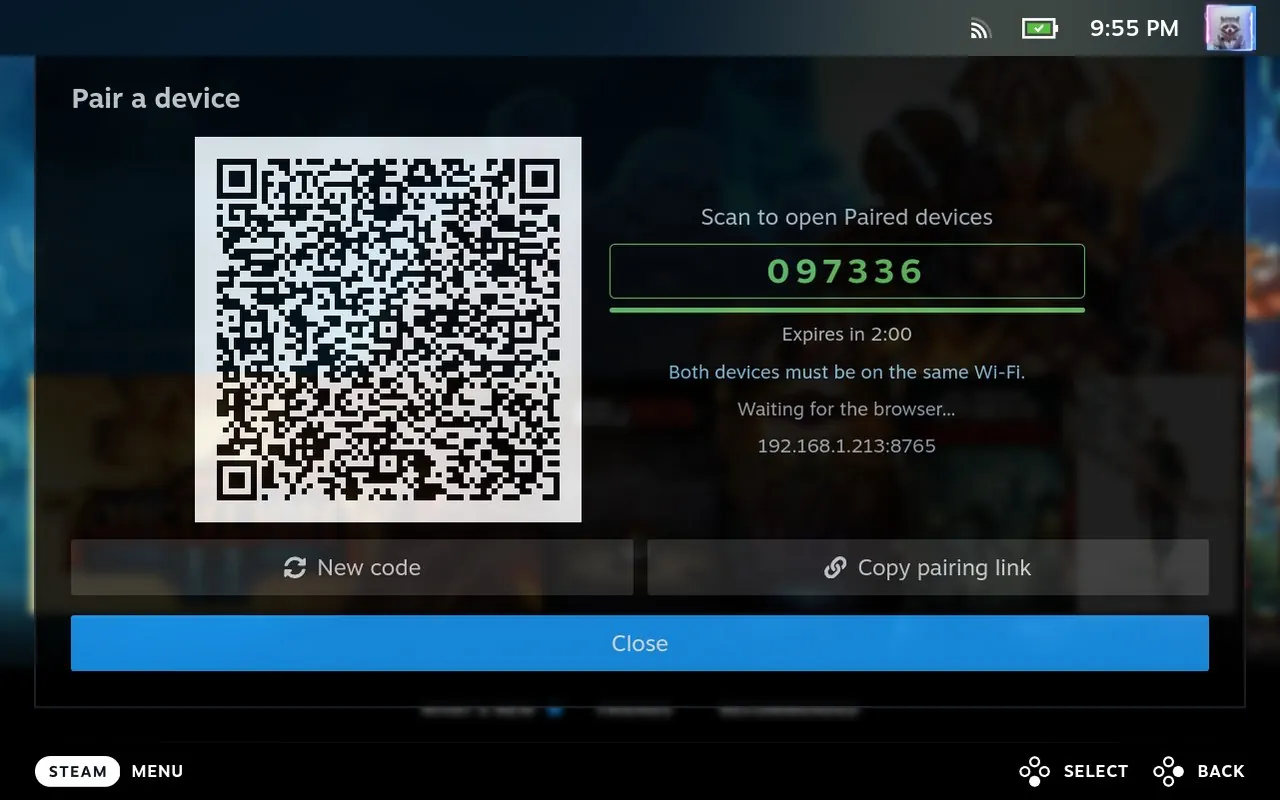 Step 1: Remote access on, with the QR code | 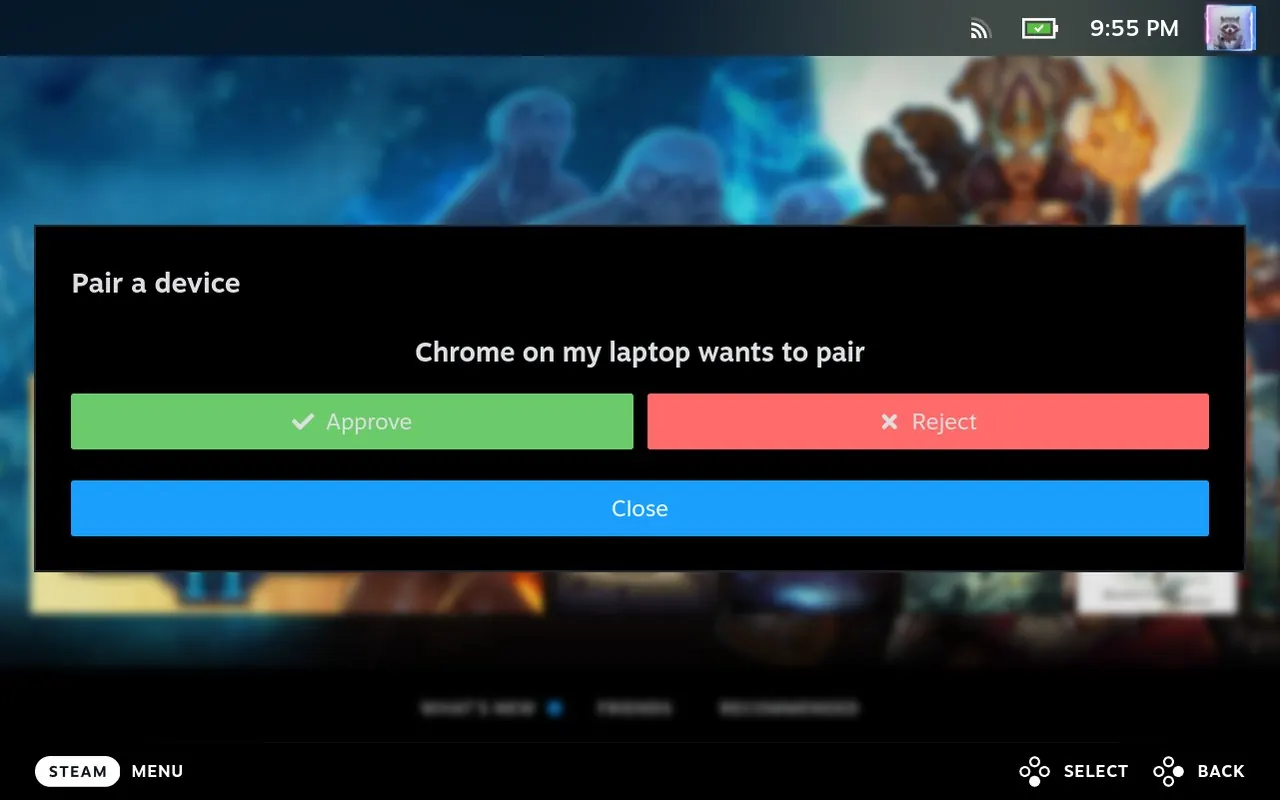 Step 3: approve the browser |
The pairing is kept after a restart, a reload or turning Remote access off. A browser you haven't used for 30 days is forgotten.
Send a plugin to your device
- In the paired browser, open a plugin's page on deckyhub.com.
- Under Send to device, pick your device and press Send. Only devices the browser can reach right now are listed, so keep Remote access on.
- On your device, the request appears at the top of the Remote Install section. Press Approve, then confirm Decky Loader's own install prompt.
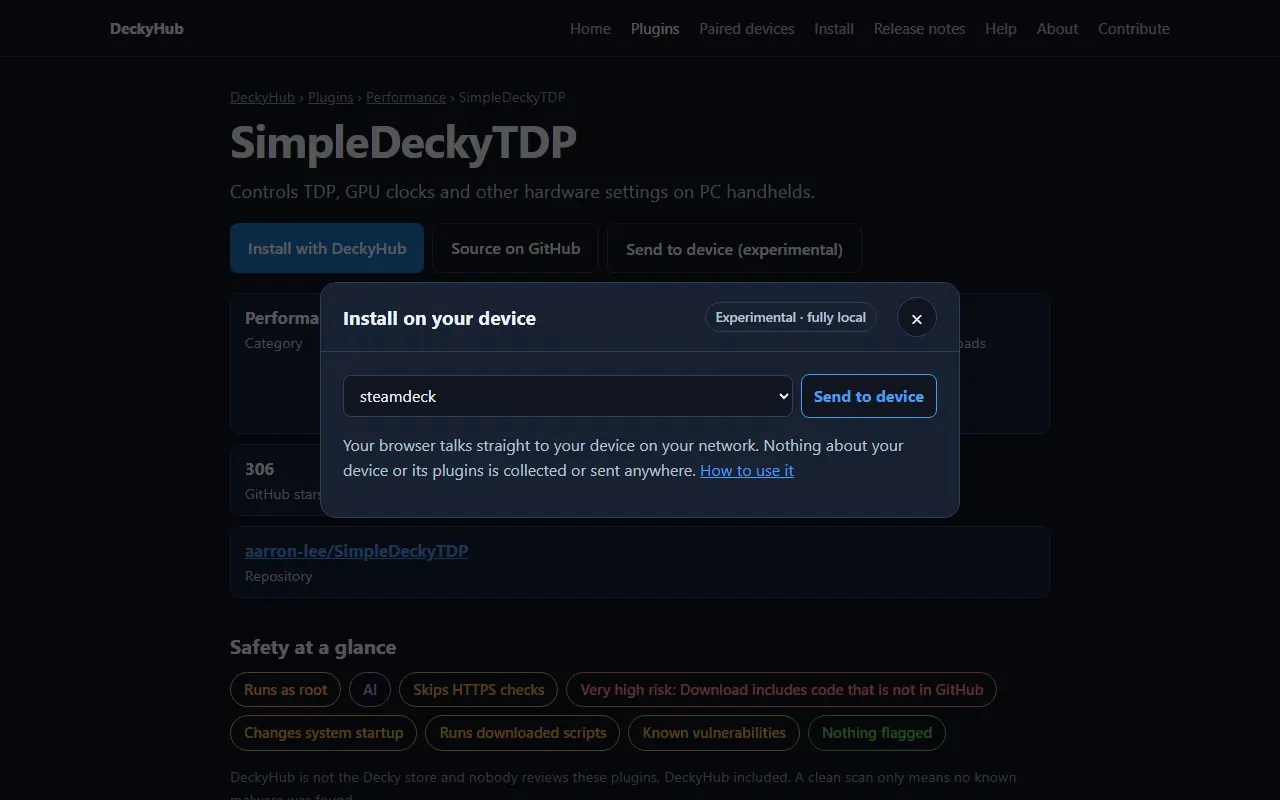 Step 2: pick your device and press Send | 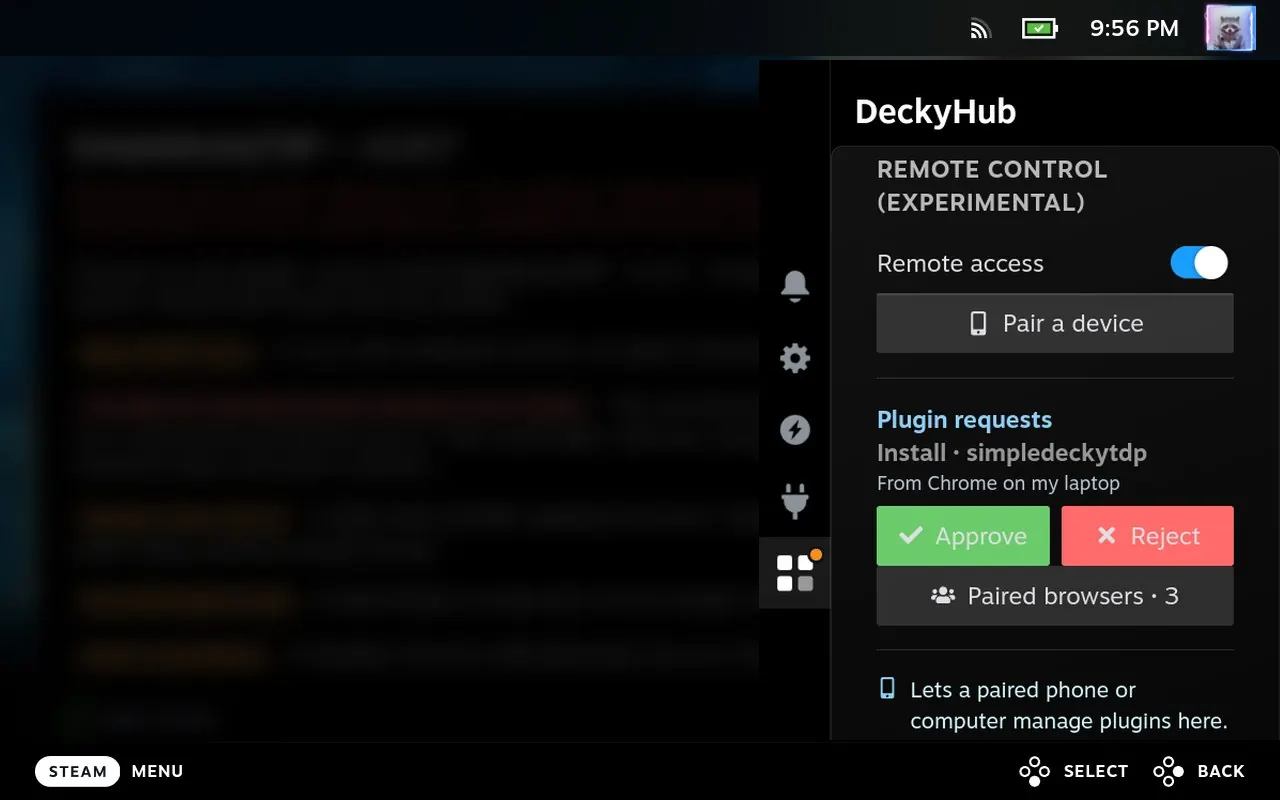 Step 3: approve the request |
A request that isn't approved within two minutes expires. Send it again if that happens.
Manage installed plugins
- Open Paired devices in the paired browser and pick your device. Its installed plugins are listed.
- Press Update or Uninstall next to a plugin, or Browse plugins to install to add one.
- Approve the request on your device, as above.
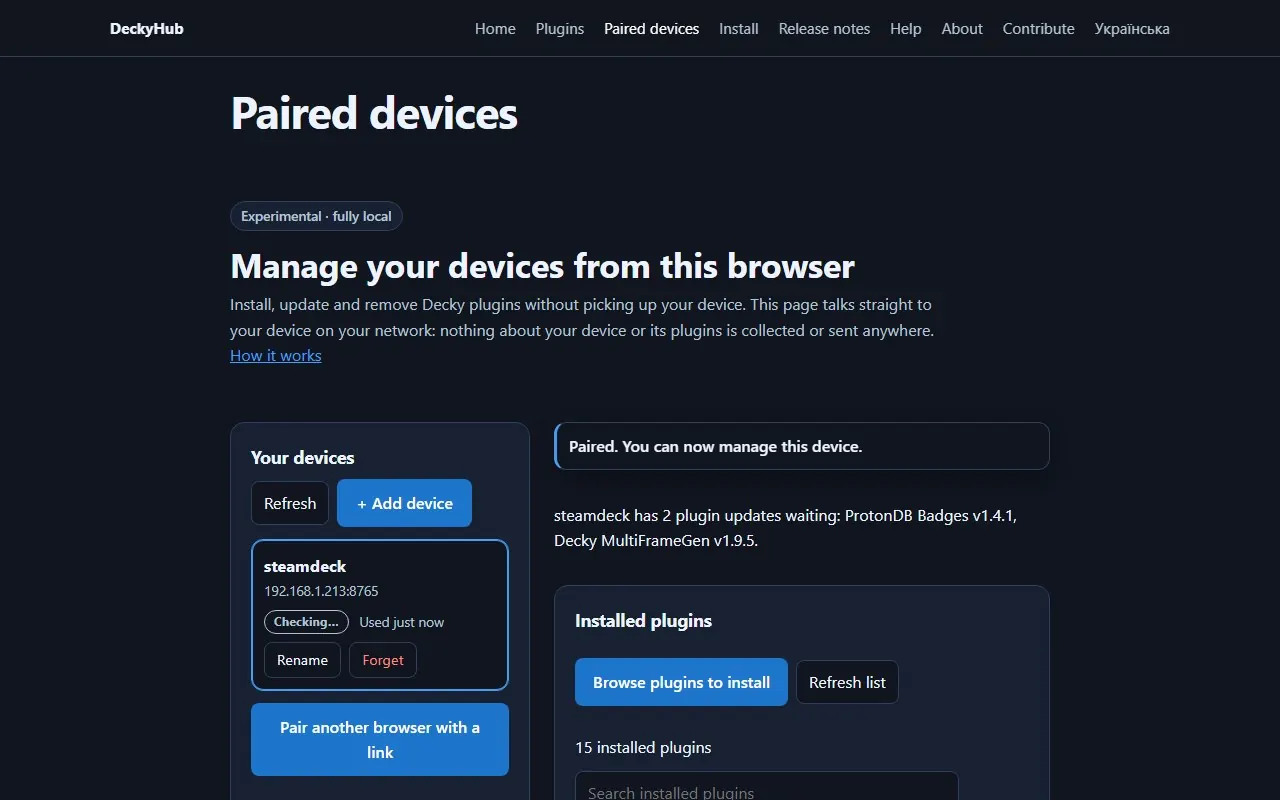 Your device and its installed plugins |
Install and update work for plugins DeckyHub can match to its list. Uninstall works for any installed plugin whose name is unique. DeckyHub itself can only be managed on the device.
Trusted browsers
Turn on Trusted next to a paired browser and its requests run without asking: no approval in DeckyHub, and DeckyHub confirms Decky Loader's install prompt for you. It can only be switched on from the device itself, after a warning. Plugins can run with full access to your device, so only trust a browser you control. Turn Trusted off to go back to approving every request.
Stop using it
- One browser: remove it under Paired browsers on your device, and press Forget device on the Paired devices page.
- Everything: turn Remote access off. Nothing listens on your network while it's off.
If it doesn't work
- The device isn't listed, or the browser can't connect: check that Remote access is on and the device is awake (it stops listening when it sleeps), that both are on the same Wi-Fi (not mobile data, a guest network or a VPN: turn mobile data off while you pair), that the browser may use the local network (in Chrome: Settings, Site settings, Local network, deckyhub.com set to Allow), and that your router's "AP isolation" / "client isolation" is off for this network. To tell the network from the browser, open
https://the-device-address:8765/in the same browser: "refused to connect" at once means the network is fine, a long wait means the browser can't reach the device. When pairing fails the page shows technical details with a Copy button; add them, and DeckyHub's log (Settings, Logs, Export: it lists each connection a browser tried), to a bug report. - It worked before and stopped: your router may have given the device a new address. Open the Quick Access tab to see it, or pair again.
- Remote Install isn't supported on this system: the device's Decky Loader runs a Python version DeckyHub has no network library for. Nothing else in DeckyHub is affected.
- The browser says it needs Chrome or Edge: open the page in a Chromium browser.
How it stays safe: the connection is encrypted and pinned to your device's own certificate, and a request can only name a plugin or a release, never a file or a command.
Keeping DeckyHub itself updated
The Quick Access Menu shows the installed version (DeckyHub vX.Y.Z) and checks for a newer DeckyHub release in the background, with a notification the first time one appears; a note names the new version and an Update button installs it straight away, like an app card's. Manage opens DeckyHub's update window, where you pick a channel (Stable releases, or Pre-releases for every release) and a version, then:
- Update to / Reinstall / Downgrade to vX.Y.Z — downloads that release (with a progress window) and hands it to Decky Loader's own installer (the same one the Decky store uses), which verifies its SHA-256 checksum and installs it in place. Only releases with a published checksum are offered.
- Download ZIP — the classic path: saves the release ZIP to
~/Downloads/deckyhub, which you then install yourself (see Option 2: Manual ZIP).
The update window also shows the selected release's Virus scan report. Every DeckyHub release is scanned with ClamAV before it's published; the result is stated in its release notes and its scan report is attached to the release; its Python and TypeScript code is checked by GitHub CodeQL on every change.
Registry Channel, in DeckyHub's own Manage window (Quick Access → DeckyHub → Manage), picks which version of DeckyHub's own plugin list you see. Stable (the default) is what everyone gets. Pre-release shows plugins and list changes that are still being tested, and Updates and Discover say Pre-release registry while it's on; if that list can't be loaded, DeckyHub uses the stable one. Switching reloads the list straight away.