DeckyHub help
Short answers to what people ask most. Every screen and setting is described in the guide.
Installing and uninstalling
What do I need?
Any device with Decky Loader 3.x, and an internet connection that can reach GitHub. No GitHub account is needed.
How do I install DeckyHub?
The easiest way is the Desktop Mode installer: download Install-DeckyHub.desktop from the latest release, double-click it, choose Execute and enter your device's admin password. It installs Decky Loader first if it's missing. Already in Gaming Mode with Decky Loader? Turn on Developer mode in Decky's settings and use Install Plugin from URL. The install guide has every step.
Does DeckyHub install anything on its own?
Never, unless you choose it: Install, Update and Uninstall go through Decky Loader's own installer, which asks you to confirm first. The one exception is a browser you mark as Trusted under Remote Install, whose requests run without asking. Download ZIP only saves a file to ~/Downloads/deckyhub.
How do I uninstall DeckyHub?
In Decky's settings (the gear icon), open Plugins, open the menu next to DeckyHub and choose Uninstall. Decky removes DeckyHub with its settings and cached lists. Plugins you installed with it stay installed, and so do the files it saved to Downloads.
Updates
How do I update my plugins?
The Updates screen lists every installed plugin that has a newer release. Update one from its Manage window, or tap Update All to update them all behind one confirmation.
Why doesn't a new release show up right away?
Release info is cached for 30 minutes, and the plugin list's release file is refreshed every hour, so a brand-new release can take up to an hour to appear. Check for Updates and Refresh skip DeckyHub's own cache.
How does DeckyHub update itself?
Its Quick Access tab shows when a new DeckyHub release is out, with an Update button. Manage there lets you pick Stable releases or Pre-releases, and a specific version to update, reinstall or downgrade to.
Where is DeckyHub in Quick Access?
In Decky's plugin list. To give it its own tab in the Quick Access tab strip too, turn on Settings → General → DeckyHub tab in Quick Access.
What are the Stable and Pre-release channels?
Each plugin's Manage window has a channel: Stable offers only stable releases, Pre-release offers every release. Separately, the Registry Channel in DeckyHub's own Manage window picks the plugin list itself: Stable is what everyone gets, Pre-release shows list changes still being tested.
Remote Install (experimental)
How to use it
You need DeckyHub on your device, a second device on the same network, and Chrome, Edge or another Chromium browser on it.
1. Pair a browser (once)
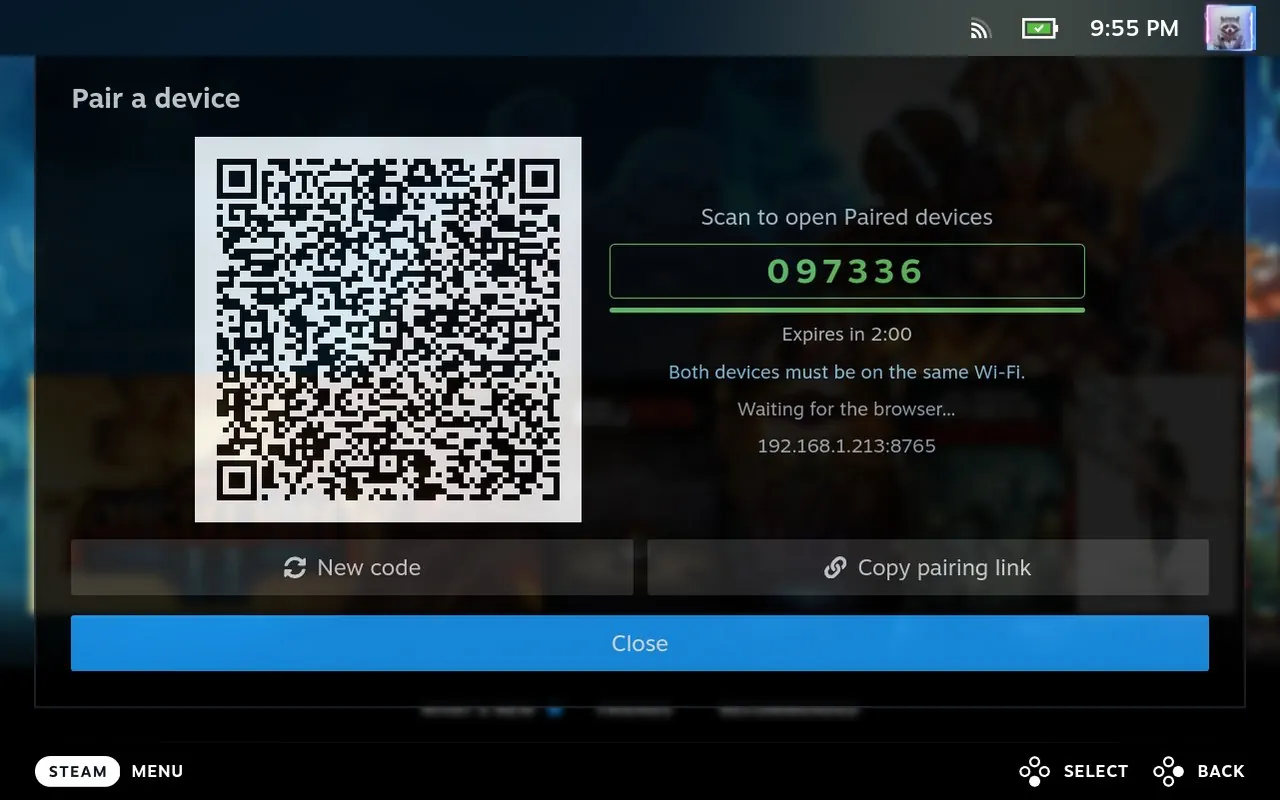
- On your device, open DeckyHub's Quick Access tab and turn on Remote access under Remote control. A QR code appears.
- Scan the QR code with your phone, or choose Copy pairing link and open the link on your computer. It opens the Paired devices page. Allow local network access if the browser asks.
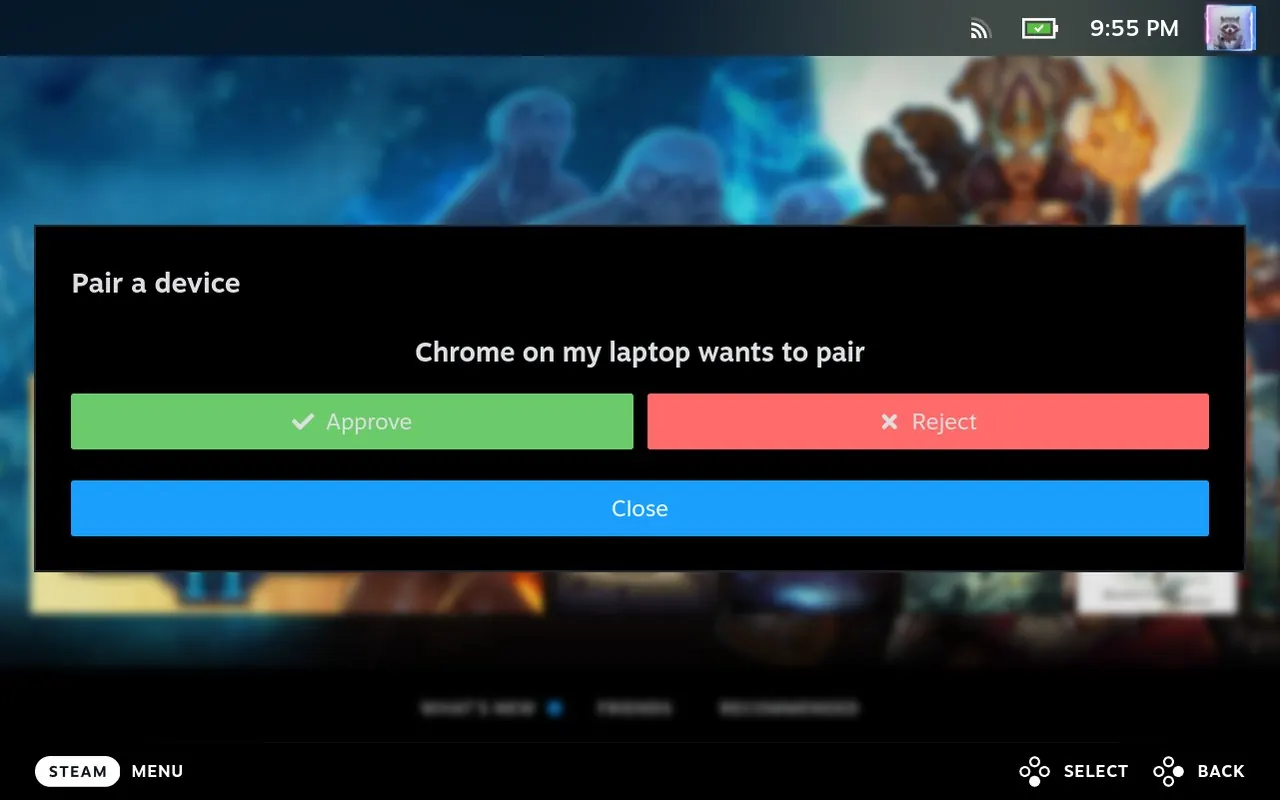
- Back on your device, Approve the browser under Pairing requests.
2. Send a plugin to your device
- In the paired browser, open a plugin's page on deckyhub.com.
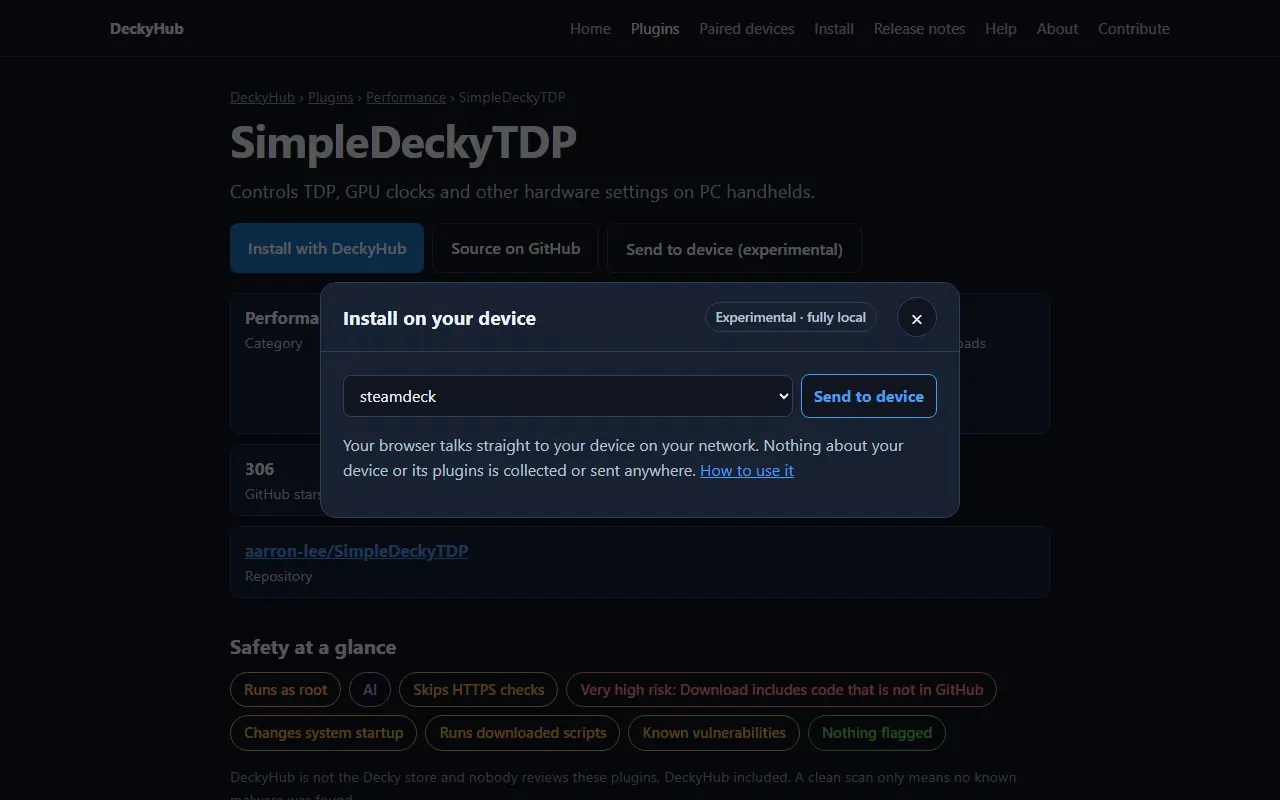
- Under Send to device, pick your device and press Send. Only devices the browser can reach right now are listed, so keep Remote access on.
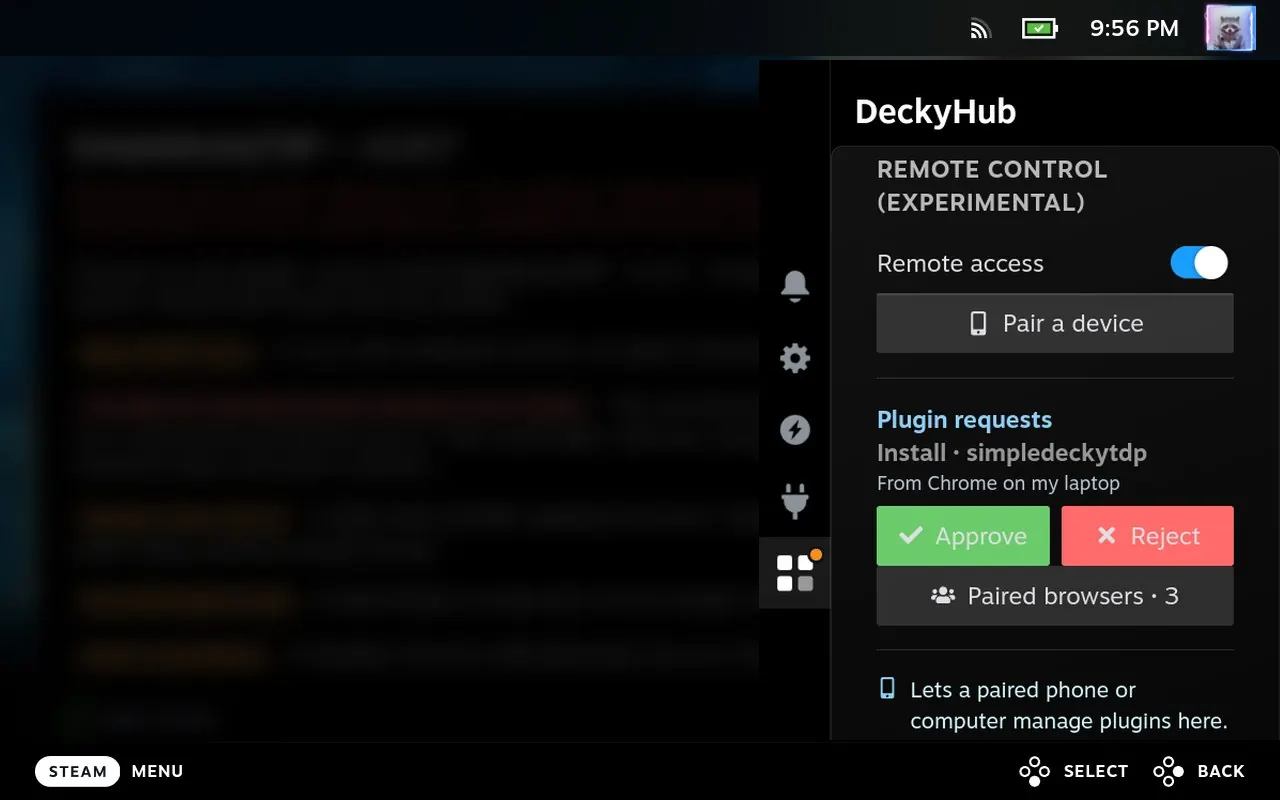
- On your device, the request appears at the top of the Remote Install section. Press Approve, then confirm Decky Loader's own install prompt.
3. Manage installed plugins
- Open Paired devices in the paired browser and pick your device. Its installed plugins are listed.
- Press Update or Uninstall next to a plugin, or Browse plugins to install to add one.
- Approve the request on your device, as above.
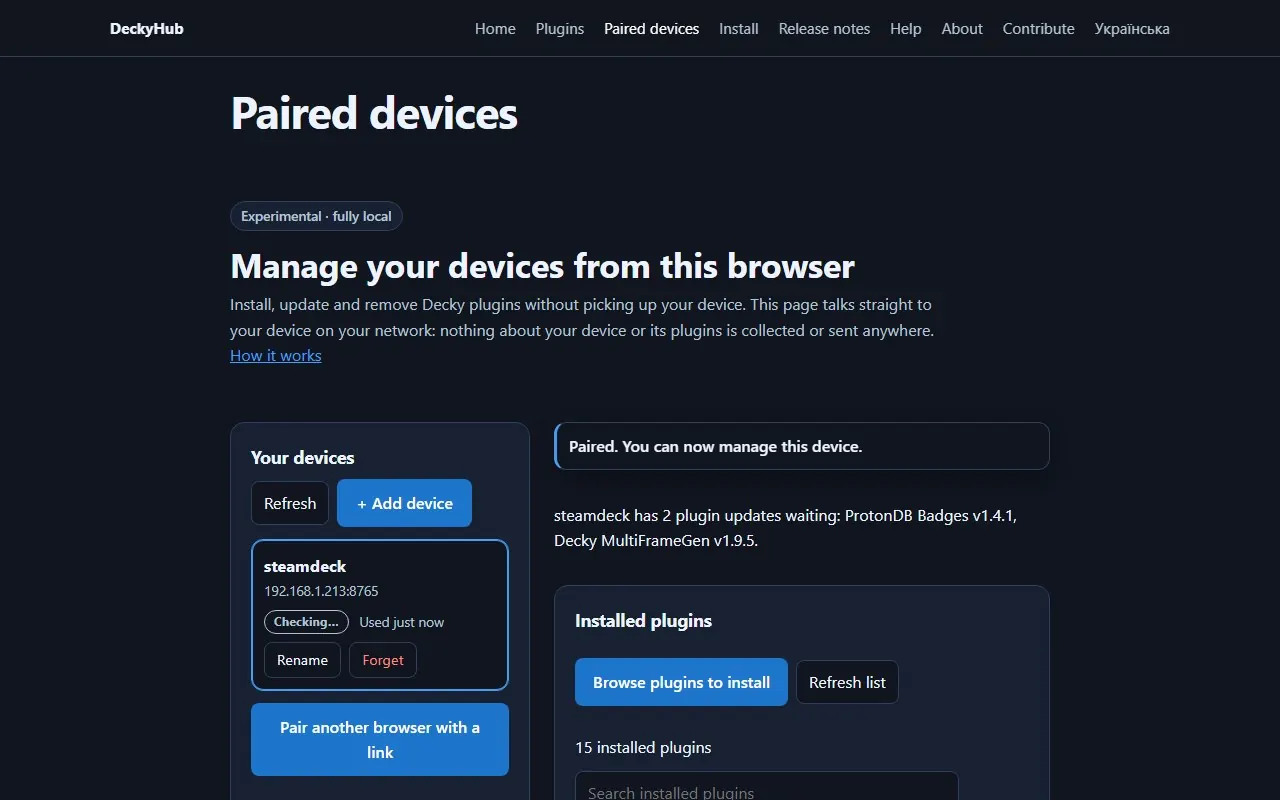
What is Remote Install?
It lets you install, update or uninstall plugins on your device from a browser on the same network. Open the Paired devices page or any plugin's page in Chrome, Edge or another Chromium browser. It is experimental, so expect rough edges. It is also fully local: your browser talks straight to your device on your network, nothing goes through a server, and nothing about your device or its plugins is collected or sent anywhere.
How do I pair a browser?
In DeckyHub's Quick Access tab, turn on Remote access under Remote control, scan the QR code (or open the pairing link), allow local network access if the browser asks, then approve the browser on your device. You only pair once: pairings are kept until you remove them or haven't used a browser for 30 days.
Do I have to approve every request?
Yes, by default. Each request shows in the Quick Access tab for you to Approve or Reject, and Decky Loader still asks to confirm installs and updates. If you fully trust a browser, turn on Trusted next to it: its requests then run without asking. Only switch it on for a browser you control, because plugins can run with full access to your device. You can turn it off or remove the browser at any time.
Which plugins can I manage remotely?
Install and update work for plugins DeckyHub can match to its list. Uninstall also works for any other installed plugin with a unique name. DeckyHub itself can only be managed on the device.
The browser can't find my device
Work down this list: use Chrome, Edge or another Chromium browser; make sure Remote access is on and the device is awake (it stops listening when it sleeps); keep both devices on the same Wi-Fi, not mobile data, a guest network or a VPN (turn mobile data off while you pair); allow local network access when asked, or in Chrome under Settings, Site settings, Local network set deckyhub.com to Allow; if your router has "AP isolation" or "client isolation", turn it off for this network. If the router gave the device a new address, open the Quick Access tab to see it or pair again.
To tell the network from the browser, open https://the-device-address:8765/ in the same browser: "refused to connect" at once means the network is fine, a long wait means this browser can't reach the device. When pairing fails, the page shows technical details with a Copy button: add them to a bug report, with DeckyHub's log from Settings, Logs, Export (it lists each connection a browser tried).
Badges, warnings and virus scans
What do the badges on plugins mean?
Runs as root: its backend has full access to the system. No release in a year: it may be abandoned. Fork: its code started as a copy of another plugin, which its page links to. AI: its repository is set up for AI coding assistants or its README says it's made with AI, which says nothing about quality or safety. Rust: its repository has Rust code, so part of the plugin is written in Rust, which also says nothing about quality or safety. Pre-release only: it has no stable release, so DeckyHub offers its pre-releases and hides the Stable channel. No description: its author hasn't said what it does. Each plugin's page lists its badges.
Where do the audit warnings come from?
From Decky Extended Plugins' automated security audit of the release you'd install, for things like reading private data, hidden code or skipping HTTPS checks. A warning isn't proof of harm, and no warning isn't proof of safety. Known issues lists every plugin with one.
How are plugins scanned for viruses?
Every three hours the registry scans the plugin ZIPs DeckyHub offers with ClamAV and with YARA rules, and once a day it checks them with VirusTotal and MetaDefender, uploading a ZIP to each one that hasn't seen it yet. Your device uploads nothing. The results are in each plugin's Manage window and on its page here. A flagged scan can be a false positive: read the report and decide. The scans are signature-based: they only catch known malware, and malware can be built to get past them, so a clean scan isn't proof a plugin is safe. Only the Decky plugin store reviews plugins by hand; DeckyHub's checks are a step up from a bare GitHub download, not a replacement for that review.
Which releases are scanned, and why does a plugin say "Not scanned yet" or "Scan pending"?
Every plugin in DeckyHub's list is scanned, starting with the ZIPs you'd actually install: its newest stable release and its newest pre-release. Older releases follow later. Each scan run has a size and time limit, and VirusTotal and MetaDefender allow a limited number of checks a day, so a new plugin or release can take a few hours to get its ClamAV and YARA results and a day or more for the other two. Scan pending means the service hasn't finished yet, or couldn't fully scan the ZIP (for example, it's encrypted or too big), which DeckyHub never counts as clean. ZIPs over 650 MB aren't uploaded. Plugins found through Search or from repositories you added yourself aren't in the list, so they aren't scanned at all. Once a ZIP has a result it isn't scanned again.
Does DeckyHub review the plugins it lists?
A person reviews every addition to the plugin list, but not for safety. Every plugin belongs to its own authors, and DeckyHub doesn't own or endorse them. Plugins found through Search aren't reviewed at all, so install only from authors you trust.
Browser extension
What is the Deckyhub browser extension?
A free extension for Chrome, Edge, Opera, Brave, Vivaldi and Firefox that shows DeckyHub's safety information while you browse GitHub. On a plugin's repository page it shows badges (runs as root, audit warnings, fork, in the Decky store, made with AI, Rust, latest scan) and a link to its DeckyHub page. On the Releases page and on each release it adds a block with the audit warnings, the ClamAV, YARA, VirusTotal and MetaDefender results and links that open that exact version on deckyhub.com, including Send to device (experimental). You can collapse the panels, or have them collapsed by default in the toolbar popup.
How do I install the extension?
It isn't listed in the Chrome, Edge or Firefox stores yet. Download the latest build for your browser from its GitHub releases and follow the steps in its README. The source is open under GPL-3.0-or-later.
Does the extension collect any data?
No. It only reads the public registry files DeckyHub already uses, has no account or analytics and sends nothing to anyone. Like the rest of DeckyHub's checks, a clean scan isn't proof a plugin is safe: the scans only catch known malware, so read the results and install only from authors you trust.
Troubleshooting
I hit a GitHub rate limit. What now?
Browsing DeckyHub's list doesn't count toward it, but Search and repositories you added yourself ask GitHub, which allows 60 requests an hour without a login. The message says how long to wait. To raise the limit to 5,000, add a personal access token (no scopes needed) in Settings, GitHub. It stays on your device and is only sent to api.github.com.
Discover is empty after installing. Why?
DeckyHub needs to reach GitHub once to download the plugin list. After that it works offline from the last copy.
Install or Update doesn't work. What can I do?
Older Decky Loader builds may not support one-tap installs. Update Decky Loader, or use Download ZIP and install the file from Decky's Developer settings.
Does DeckyHub collect any data?
The plugin: no. It has no account, analytics or telemetry and sends nothing to its author. The deckyhub.com website does count visits (page views, country and browser type, without cookies) with Cloudflare Web Analytics; the plugin itself is completely clean: it counts and sends nothing. The plugin only connects to GitHub, plus any custom registry you add. Your settings, token and logs stay on your device.
Getting help
I have a question or an idea. Where do I ask?
Start a thread in GitHub Discussions: Q&A for questions, Ideas for suggestions.
How do I report a bug?
Open an issue on GitHub and describe what happened. Attaching the ZIP from Settings, Logs, Export Logs helps. It's saved to your Downloads folder and never sent anywhere on its own.
A plugin is missing. How do I get it added?
Suggest it on the Contribute page. It needs a GitHub release with a plugin ZIP. Until then, DeckyHub's Search can find and install any Decky plugin on GitHub.